
Start WordPress performance optimization by measuring representative pages on mobile, separating field data from lab tests, and fixing the largest bottleneck first. Prioritize server response and page caching, then images, fonts, themes and builders, plugins, and third-party scripts. Change one variable at a time and retest before keeping it.
Last verified: July 21, 2026. Our measurement process is explained on the How RankPlot Tests WordPress Products page.
WordPress Performance Optimization in 5 Steps
If you want the short version, use this order:
- Measure representative pages on mobile. Test more than the homepage, and record both lab and real-user data where available.
- Fix server response and page caching. A slow uncached response can hold back everything that follows.
- Reduce page weight. Optimize the actual LCP element, images, fonts, and other resources that visitors must download.
- Control code and third parties. Review themes, builders, plugins, ads, analytics, embeds, and scripts based on measured cost.
- Retest and monitor. Change one variable at a time, compare several runs, and check that the site still works.
This sequence matters. A site with a slow server does not become fast because you compressed one small icon. A site with a 4 MB hero image does not need a database cleanup first. The correct fix depends on the bottleneck.
| Symptom | Likely areas to inspect | Check first | Useful metrics |
|---|---|---|---|
| The initial response is slow | Hosting, page cache, database queries, external APIs | Compare cached and uncached response behavior | TTFB, server timing |
| The main content appears late | Hero image, fonts, render-blocking CSS, server response | Identify the LCP element | LCP, TTFB, resource waterfall |
| Taps and clicks feel delayed | Long JavaScript tasks, third-party scripts, complex widgets | Record a slow interaction | INP, long tasks, TBT as a lab diagnostic |
| Content jumps while loading | Missing dimensions, ads, embeds, font changes | Find the shifting element | CLS |
| The dashboard is slow | Autoloaded options, cron jobs, database work, plugin requests | Profile the affected admin screen | Query time, PHP time, scheduled events |
Measure Before You Optimize
Performance work becomes unreliable when the test changes every time. Before installing a plugin or changing a setting, create a baseline you can reproduce.
Choose at least four representative URLs:
- the homepage;
- a normal article or blog post;
- a commercial page, product page, or landing page;
- the heaviest important template, such as a WooCommerce shop, comparison table, or builder-based page.
Test mobile first because constrained devices and networks expose problems that a fast desktop can hide. Desktop results still matter, but a desktop score should not be used to dismiss a weak mobile experience.
Record the URL, date, test tool, device profile, location, cache state, active theme, important plugins, and hosting environment. If you later change several of those variables together, you will not know which change produced the result.
Field data and lab data answer different questions
PageSpeed Insights can show two types of evidence:
| Data type | What it represents | Best use | Main limitation |
|---|---|---|---|
| Field data | Experiences collected from real Chrome users through CrUX | Monitoring actual user experience and Core Web Vitals | Requires enough traffic and reflects a rolling 28-day period |
| Lab data | A Lighthouse run in a simulated environment | Debugging a specific page and comparing controlled changes | One run cannot represent every visitor or network condition |
Field data can reveal problems that a clean lab test misses: older phones, slow networks, consent tools, ads, personalization, and real interaction patterns. Lab data is more controllable, so it is better for finding a cause and checking whether a particular change moved a metric.
Do not treat a disagreement between them as an error. Ask why the controlled test and real traffic differ.
Use Core Web Vitals as thresholds, not a complete diagnosis
Google defines the current “good” Core Web Vitals thresholds as:
- LCP: 2.5 seconds or less;
- INP: less than 200 milliseconds;
- CLS: 0.1 or less.
Field assessments use the 75th percentile. That means a page must work well for most visits, not only in its best run. These three metrics describe loading, responsiveness, and visual stability, but they do not explain every WordPress problem. TTFB, resource size, request count, long tasks, and server queries remain useful diagnostics.
A Lighthouse score of 100 can be a helpful lab result. It is not a business objective by itself. A stable page with a clear interface and good real-user performance is more valuable than a fragile configuration created only to raise a score.
Diagnose the Bottleneck Before Choosing a Fix
Begin with the symptom, then trace it to a layer of the stack.
If TTFB is high
Time to First Byte includes network and server response time. A high value can point toward a distant or overloaded server, a missed page cache, slow PHP execution, heavy database work, or an external API that blocks the response.
Compare a first uncached request with a warmed request. If the warmed response improves dramatically, page caching is doing important work and the uncached path may still need attention. If both remain slow, investigate server resources, PHP workers, database queries, DNS, and network distance.
Do not assume that a CDN fixes the origin. A CDN can reduce distance and serve cached static files or pages, but it cannot automatically repair a slow query or a blocking API call inside WordPress.
If LCP is high
First identify the Largest Contentful Paint element. It is often a hero image, featured image, large heading, or content container. Then determine whether the delay comes from server response, late resource discovery, download size, render-blocking styles, or client-side rendering.
Optimizing random images will not help if the actual LCP element is a background image discovered late in CSS. Preloading every large file is also not a solution; excessive preloads compete for bandwidth. Give priority only to resources that are genuinely critical.
If INP is high
Interaction to Next Paint reflects responsiveness across real interactions. Look for long JavaScript tasks, expensive event handlers, large DOM updates, third-party scripts, and widgets that perform too much work after a click or tap.
Total Blocking Time can help during a Lighthouse lab test, but it is not a replacement for real-user INP. Reproduce a slow interaction in browser performance tools and determine which task delayed the next paint.
If CLS is high
Layout shifts commonly come from images or embeds without dimensions, ads inserted into unreserved space, banners that push content down, and font changes that alter text size. Reserve space before dynamic content arrives. Set image dimensions, use stable placeholders, and test consent banners and sticky elements on small screens.
If only the WordPress dashboard is slow
Front-end optimization may not touch the problem. Review database queries, autoloaded options, scheduled tasks, Heartbeat activity, external license checks, and plugin-specific admin requests. Profile the affected screen rather than deleting database rows at random.
Fix Hosting, PHP, and Server Response First
WordPress generates dynamic pages through PHP and database work. When full-page caching does not apply, the origin must complete that work before the browser receives HTML. This makes the server layer a sensible early checkpoint.
Keep WordPress core, the theme, plugins, and PHP on supported versions, but never perform a major upgrade blindly. Back up the site, check compatibility, test in staging, and confirm critical forms, checkout flows, scheduled tasks, and integrations before updating production.
Check the current host before migrating
Use this decision order:
- Confirm that page caching is enabled and producing cache hits for public pages.
- Check resource limits, PHP workers, memory pressure, and recurring CPU spikes.
- Look for slow queries, external calls, and plugin tasks that would follow you to a new host.
- Check whether the server region is reasonably close to the main audience.
- Consider migration only when the current platform cannot provide the needed resources, controls, reliability, or support at a reasonable cost.
A more expensive host does not excuse an unoptimized application. Equally, no amount of front-end tuning can create server capacity that is not available. If you are comparing providers, use RankPlot’s WordPress hosting comparison as a shortlist—not as a substitute for measuring your own workload.
Understand page cache, object cache, and OPcache
These layers solve different problems:
- Full-page cache stores completed HTML for eligible requests, avoiding most WordPress generation work.
- Persistent object cache can reuse database query results and objects between requests. It is more relevant to dynamic or repeated application work than to an already cached static page.
- PHP OPcache stores compiled PHP bytecode so scripts do not need to be parsed and compiled on every request.
Enabling every cache without understanding the host is not automatically better. Some managed hosts already provide server-level page or object caching. Adding another plugin that duplicates the same layer can create confusing purge behavior.
Configure Caching and Compression Safely
Caching is often one of the highest-impact WordPress improvements, but it is also a common source of stale pages and broken dynamic behavior.
Know what should not be cached
Public articles and marketing pages are usually straightforward candidates. Logged-in views, shopping carts, checkout pages, account dashboards, membership content, and personalized responses may require exclusions or special rules.
After enabling or changing caching:
- purge the application, server, CDN, and browser-related caches as appropriate;
- test while logged out and in a private browser;
- submit forms and confirm emails or records arrive;
- test menus, search, filters, logins, carts, and checkout;
- verify analytics and conversion events;
- check mobile and desktop layouts.
Avoid overlapping optimization plugins
Running two all-in-one performance plugins can mean two page caches, two minifiers, two lazy-loading systems, and two sets of JavaScript delay rules. The result may be duplicate work, unpredictable purges, or failures that appear only for some visitors.
Choose one owner for each function. A host may own page caching, a CDN may own edge caching and compression, and a WordPress plugin may handle selected front-end tasks. Write down the boundary.
Compression and modern transport
Brotli or Gzip can reduce the transfer size of text resources such as HTML, CSS, JavaScript, and SVG. HTTP/2 and HTTP/3 can improve how resources travel over the connection. These are useful delivery features, but they do not make unnecessary JavaScript free. Removing unneeded bytes is still better than compressing and shipping them.
Be careful with CSS and JavaScript combination. Advice written for older HTTP/1.1 setups does not automatically fit modern delivery. Test minification, combination, defer, and delay separately, and keep the option to roll each one back.
Optimize Images, Fonts, and the LCP Element
Images are visible and easy to optimize, but the goal is not simply “make every image smaller.” The goal is to deliver the right visual at the right dimensions and priority.
Use appropriately sized images
Do not upload a huge source image and display it as a small card when a responsive derivative can do the job. Compress images to a quality level appropriate for the content, and evaluate modern formats based on browser support, visual quality, workflow, and fallback behavior.
WordPress can generate responsive image candidates, but the theme or builder must output them correctly. Inspect the rendered HTML rather than assuming the original upload size is never served.
Treat the LCP image differently
Images below the fold are good lazy-loading candidates. The main above-the-fold image often is not. Lazy-loading the LCP resource can delay its discovery and make LCP worse.
Identify the real LCP element first. If it is an image, check:
- whether it appears in the initial HTML;
- whether the browser receives an appropriate source and dimensions;
- whether lazy loading delays it;
- whether CSS hides or replaces it;
- whether it competes with unnecessary high-priority resources.
Set explicit width and height attributes or preserve the correct aspect ratio so the browser can reserve space before the file arrives.
Limit font cost
Each font family, style, and weight can add requests and bytes. Keep the typography system intentional. Prefer only the weights actually used, remove duplicate font sources, and consider whether a system font stack is acceptable.
Font preloading is useful only for fonts needed immediately. Preloading unused variations wastes bandwidth. Also test the visual effect of the font-display strategy: an invisible heading and a shifting heading are different problems.
Choose a Lightweight Theme and Page-Building Approach
Theme marketing often reduces performance to an empty-demo score. Real pages include content, templates, plugins, fonts, analytics, and editing tools. The more useful question is not “Which theme has the highest demo score?” but “Which stack produces the page we need with the least unnecessary work?”
RankPlot tested that question in a controlled WordPress setup.
What our 120-run test found
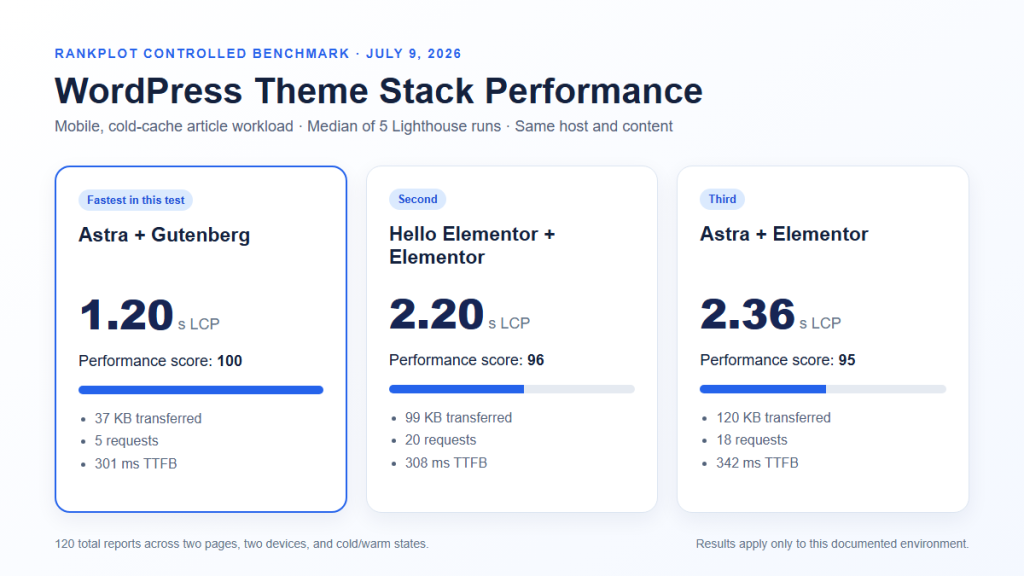
On July 9, 2026, RankPlot completed 120 valid Lighthouse reports across three isolated WordPress installations on the same host. We compared Astra + Gutenberg, Astra + Elementor, and Hello Elementor + Elementor using two matching page workloads, mobile and desktop profiles, cold and warm cache states, and five runs per cell. We report medians rather than selecting the best run.
The following results are for the mobile article workload with a cold cache:
| Test stack | Performance score | TTFB | LCP | Transfer size | Requests |
|---|---|---|---|---|---|
| Astra + Gutenberg | 100 | 301 ms | 1.20 s | 37 KB | 5 |
| Hello Elementor + Elementor | 96 | 308 ms | 2.20 s | 99 KB | 20 |
| Astra + Elementor | 95 | 342 ms | 2.36 s | 120 KB | 18 |
In this workload, Astra + Gutenberg transferred fewer bytes, made fewer requests, and reached a lower median LCP than either Elementor stack. When both setups used Elementor, Hello was slightly lighter and had a lower median LCP than Astra.
The narrow conclusion is that the page-building approach produced a larger resource difference here than switching between Astra and Hello while keeping Elementor. It does not prove that Gutenberg or Astra is universally fastest. Hosting, content, images, plugins, fonts, ads, and third-party scripts can outweigh the theme.
Read the complete WordPress theme speed test data, download the full run log in CSV, or inspect the aggregate results in JSON. For the product-level context, see our Astra theme review and controlled speed test and Astra vs Hello Elementor speed comparison.
Choose the simplest stack that meets the requirement
A visual builder may be worth its cost when it saves substantial design or publishing time. Gutenberg may be the better fit for a content site that needs straightforward templates and low page weight. Neither choice should be ideological.
Write down the design and workflow requirements. Then compare candidate stacks using the same content and host. Remove widgets and add-ons that are not required. A “lightweight theme” surrounded by several extension packs can become a heavy system.
Browse the RankPlot WordPress themes hub for theme-specific research, but keep performance claims tied to the exact setup tested.
Reduce Plugin, JavaScript, and Third-Party Cost
Plugin count is a weak shortcut. Ten small, well-scoped plugins can cost less than one plugin that runs expensive queries, loads a large framework on every page, or calls a slow external service. Measure behavior, not the number displayed in the dashboard.
Audit plugins safely
Create a staging copy and establish a baseline. Then disable or replace one candidate at a time while repeating the same tests. Focus first on plugins that:
- inject CSS or JavaScript across the entire site;
- create large or frequent database queries;
- make remote API calls during page generation;
- add complex search, filtering, membership, or ecommerce behavior;
- duplicate a feature already provided by the host, theme, or another plugin.
Do not blindly disable security, forms, payments, backups, or SEO functions on production. A faster page that loses leads, orders, tracking, or protection is a failed optimization.
The RankPlot WordPress plugins hub can help you compare plugin categories. For performance decisions, reproduce the feature on your own templates before removing a tool.
Review third-party scripts
Analytics, advertising, chat, heatmaps, video embeds, A/B testing, consent platforms, social widgets, and tag managers can add network work and main-thread execution. Tag managers also hide cost: a small container script can load many tags later.
Inventory every third-party domain and assign an owner and business purpose. Remove tags with no active use. Load page-specific tools only where needed. For video and map embeds, consider a lightweight placeholder that loads the full experience after interaction, provided the change remains accessible and does not mislead users.
Delay only scripts that are genuinely non-critical. Then test navigation, menus, search, forms, cookie controls, analytics, ad placement, and conversion events. A delay rule that improves Lighthouse while breaking attribution is not a free win.
Be cautious with copied code snippets
Do not paste unfamiliar optimization code into functions.php because a tutorial promises a score increase. Theme updates, hook order, plugin dependencies, and server configuration affect the result. Use a child theme or a controlled code-management method, document the change, and keep a direct rollback path.
Clean the Database and Background Work—Without Breaking the Site
Database maintenance can improve certain slow queries, admin screens, and uncached responses. It is rarely the first fix for a front-end LCP problem when the actual cause is a large hero image or blocking script.
Before deleting anything, create a restorable database backup. Know the difference between:
- post revisions you may no longer need;
- expired transients that can usually be regenerated;
- spam or trashed comments;
- orphaned metadata left by removed plugins;
- autoloaded options loaded during many WordPress requests;
- active plugin tables that only look unfamiliar.
Do not delete a table or option because its name is unclear. Identify which component created it and whether the component is still active. WooCommerce, membership, learning, multilingual, and subscription sites require particular care because background jobs and historical records can be operationally important.
WP-Cron tasks can also affect performance when a site has heavy jobs, missed schedules, or plugins that run too frequently. Inspect the task and its duration before changing the schedule. Moving cron to a system scheduler can make execution more predictable on some hosts, but it does not make an inefficient task efficient.
Retest, Compare, and Monitor Regressions
The safest optimization loop is simple:
- Record the baseline.
- Make one documented change.
- Purge the relevant caches.
- Repeat the same test several times.
- Compare medians, not the single best result.
- Test the site’s visual and business functions.
- Keep or roll back the change.
Use a change log like this:
| Date | URL/template | Change | Device/cache | Before median | After median | Functional check | Decision |
|---|---|---|---|---|---|---|---|
| YYYY-MM-DD | Article template | Example: removed unused widget CSS | Mobile, cold | LCP: ___ | LCP: ___ | Pass/Fail | Keep/Roll back |
| YYYY-MM-DD | Landing page | Example: changed hero image delivery | Mobile, cold | LCP: ___ | LCP: ___ | Pass/Fail | Keep/Roll back |
Use the same tool, device profile, location, page, and cache definition for before-and-after lab comparisons. A different test location or a warm cache can create an apparent improvement that did not come from your change.
After deployment, monitor real-user data and Search Console. Do not expect PSI field data to change immediately: it represents a rolling 28-day collection period and may fall back to origin-level data when the page lacks enough samples.
Regression monitoring matters because sites change. A new campaign adds tracking scripts. An editor uploads an oversized image. A plugin update changes asset loading. A consent tool adds a banner. Performance optimization is a controlled maintenance process, not a one-time score.
WordPress Performance Optimization Checklist
- ☐ Back up the site and use staging for risky changes.
- ☐ Select representative templates instead of testing only the homepage.
- ☐ Test mobile and desktop under recorded conditions.
- ☐ Separate CrUX field data from Lighthouse lab diagnostics.
- ☐ Identify the current LCP element and slow interactions.
- ☐ Check server response and full-page caching when TTFB is high.
- ☐ Give each caching and optimization function one clear owner.
- ☐ Serve appropriately sized images and avoid lazy-loading the LCP image.
- ☐ Limit unnecessary fonts, weights, widgets, and builder add-ons.
- ☐ Audit plugins and third-party scripts by measured cost, not count.
- ☐ Back up the database before cleanup and never delete unknown data.
- ☐ Change one variable at a time.
- ☐ Compare several runs using medians.
- ☐ Verify forms, navigation, search, login, checkout, analytics, and conversions.
- ☐ Monitor Core Web Vitals and performance regressions over time.
Frequently Asked Questions
What is the fastest way to improve WordPress performance?
Start by testing an important page on mobile and checking server response, page caching, and the LCP element. If public pages are not cached, correct full-page caching before small front-end tweaks. If the LCP element is an oversized image, optimize its size and delivery. The fastest useful fix is the one aimed at the measured bottleneck, not the setting that appears most often in generic checklists.
What is a good PageSpeed score for WordPress?
Google labels a Lighthouse performance score of 90 or above as good, but the score is a lab summary rather than a guarantee of real-user experience. Also examine LCP, INP, CLS, field data, and the page’s actual usability. A repeatable score in a controlled test is useful for diagnosis. It should not outweigh broken functionality, unstable layouts, accessibility, or real-user evidence.
Do more plugins always make WordPress slower?
No. Plugin cost depends on what each plugin does, where it runs, and how well it is implemented. One plugin can load large assets or expensive queries across the site, while several small plugins may have little measurable impact. Audit plugins on staging, one at a time, using the same pages and tests. Do not remove a necessary business or security function only to reduce the plugin count.
Should I use more than one caching plugin?
Usually, you should avoid overlapping all-in-one caching plugins. Multiple tools may duplicate page caching, minification, lazy loading, or JavaScript delay and create unpredictable purge behavior. Different layers can coexist when responsibilities are clear—for example, host-level page cache, a persistent object cache, and CDN edge caching. Document which system owns each function and test exclusions for logged-in and dynamic pages.
Does a CDN make WordPress faster?
A CDN can reduce network distance and serve cached static files or pages from locations closer to visitors. It is most useful for geographically distributed traffic and cacheable resources. It does not automatically fix slow PHP, database queries, an oversized DOM, or heavy JavaScript. Measure origin response and browser work separately so you do not use a delivery layer to hide an application problem.
Is Gutenberg faster than Elementor?
It can be lighter in a comparable build, but the result depends on the page and stack. In RankPlot’s controlled mobile article test, Astra + Gutenberg used 37 KB and five requests with a 1.20-second median LCP, while the two Elementor configurations were heavier and had higher median LCP values. That result applies to the tested workloads; it does not prove Gutenberg wins on every site.
How often should I retest WordPress performance?
Retest after changes to hosting, caching, the theme, plugins, templates, consent tools, advertising, analytics, or major content assets. For an active site, review important templates and real-user data regularly even when no incident is reported. Keep a baseline and change log so a regression can be connected to a release instead of rediscovered from scratch.
Can WordPress performance optimization improve SEO?
Performance can improve user experience, and Google recommends achieving good Core Web Vitals as part of a strong page experience. It is not the only search signal, and a faster page does not guarantee higher rankings. Keep the content useful, crawlable, and aligned with search intent while improving speed. Treat performance as one part of a complete site, not a replacement for relevant content and trustworthy evidence.
Final Recommendation
Reliable WordPress speed optimization is a decision process, not a pile of settings. Measure representative pages, identify the largest bottleneck, make one controlled change, and verify both performance and function before keeping it.
Fix server response and page caching when the origin is slow. Optimize the actual LCP resource when the main content arrives late. Reduce theme, builder, plugin, and third-party cost only after measuring what each layer adds. Protect the site with backups, staging, and a documented rollback path.
For a reproducible example of how cache state, device, workload, theme, and editing stack affect the result, see RankPlot’s 120-run WordPress theme benchmark. For the direct builder comparison, see the Gutenberg vs Elementor performance test.